
Unity MCP 1.10.0 Adds Screenshot Saving for Game Editor Agents
A community-maintained Unity MCP bridge has released version 1.10.0, adding an option for screenshot tools to save PNGs inside a project. The feature can support reviewable visual feedback when AI agents work on scenes.
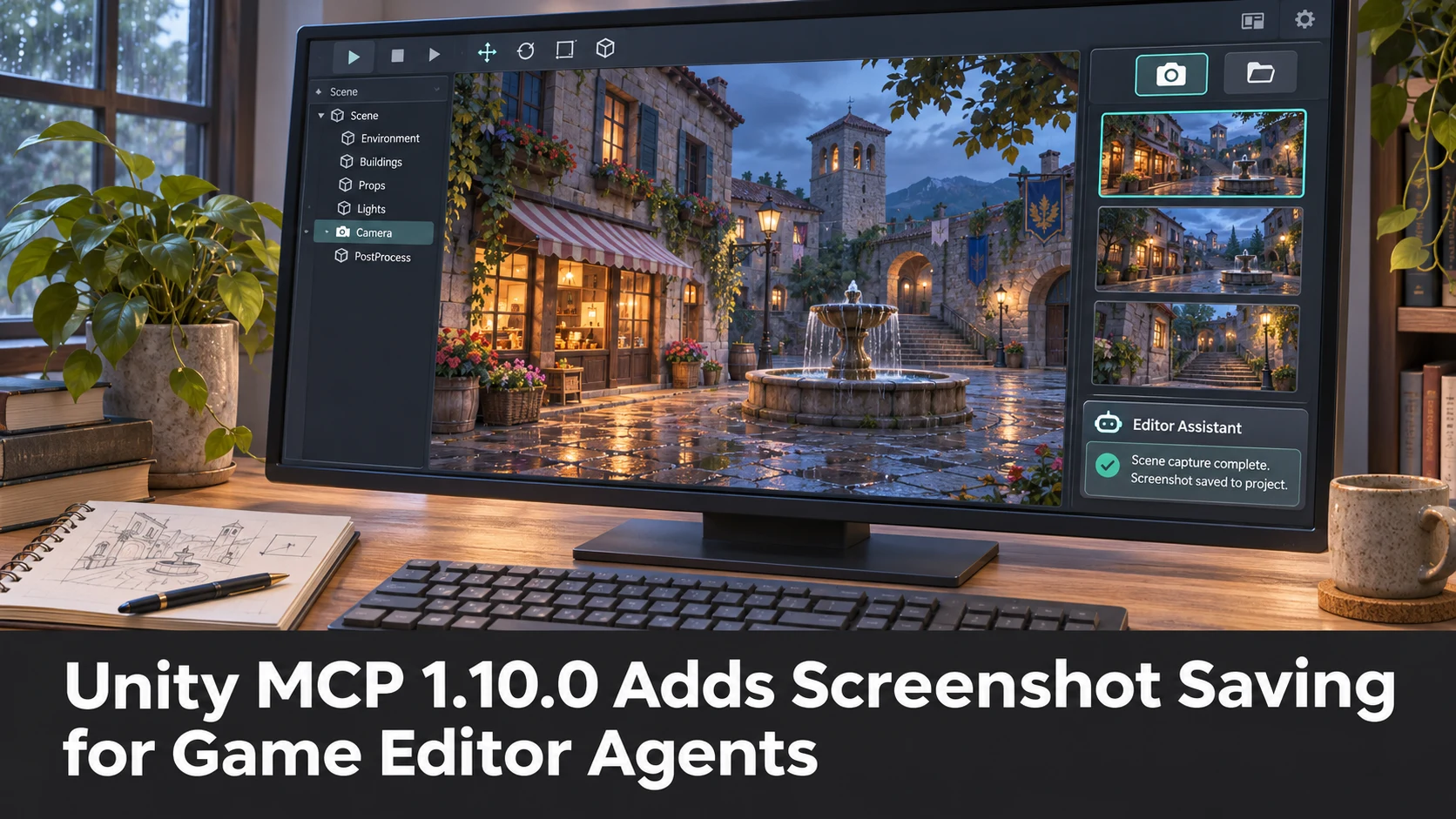
The community-maintained AI Game Developer (Unity MCP) project published version 1.10.0 on November 9, 2026. Its official GitHub release lists a focused addition: screenshot tools can save a PNG directly into the Unity project through a savePath option. The release follows version 1.9.0, which brought bulk extension-management tools and a broader command-line update sequence.
Unity MCP is an independent integration rather than a Unity Technologies engine release. It connects agent-oriented workflows to Unity project tools. That distinction matters because a developer should not assume every Unity version has the bridge installed or that the new option is part of the standard Unity Editor.
The screenshot change is straightforward but potentially useful. Agents that edit a scene need a way to inspect the visual result of their actions. A saved PNG can become an artifact that a reviewer compares against a target layout or a previous version. For a game team using an AI assistant to adjust a menu, arrange props or tune an environment, keeping an image inside the project can simplify review.
The published notes do not establish that the release adds new computer-vision reasoning to an AI model. Saving a screenshot is not the same as correctly interpreting the image or detecting an artistic error. It also does not establish that the agent can autonomously play a game or make approved changes without human oversight. Those behaviours depend on the connected assistant, available tools and permissions.
The previous 1.9.0 release is relevant context because it introduced extension Install All and Update All operations, along with a command-line update path covering the project plugin and installed extensions before updating the CLI itself. Those maintenance improvements are separate from the screenshot-save option delivered in 1.10.0. Users jumping between versions should review both release entries instead of attributing everything to a single change.
A practical evaluation would start in a copy of a Unity project. Ask the agent to reposition one test object, take an editor screenshot, save that image in a dedicated review folder and report the exact path. Then inspect the saved file, confirm that it shows the intended scene and check the version-control diff for unrelated files. Repeat after deliberately choosing an invalid output path to observe error reporting.
Teams can extend the exercise to a sequence of controlled screenshots showing a before-and-after UI or level-design change. However, screenshots are evidence of appearance at a moment in time, not proof of correct gameplay, frame rate or build stability. Conventional playtesting and profiling remain necessary.
Version 1.10.0 is a modest but verifiable community-tool release. Its value is to make visual artifacts easier to retain during AI-assisted Unity editing, not to replace artist review or to claim a new official Unity AI feature.
Rate this story
What did you think of this article?
Log in to rate this story, comment and like replies.
Log inNo comments yet. Be the first to share your thoughts.
More stories
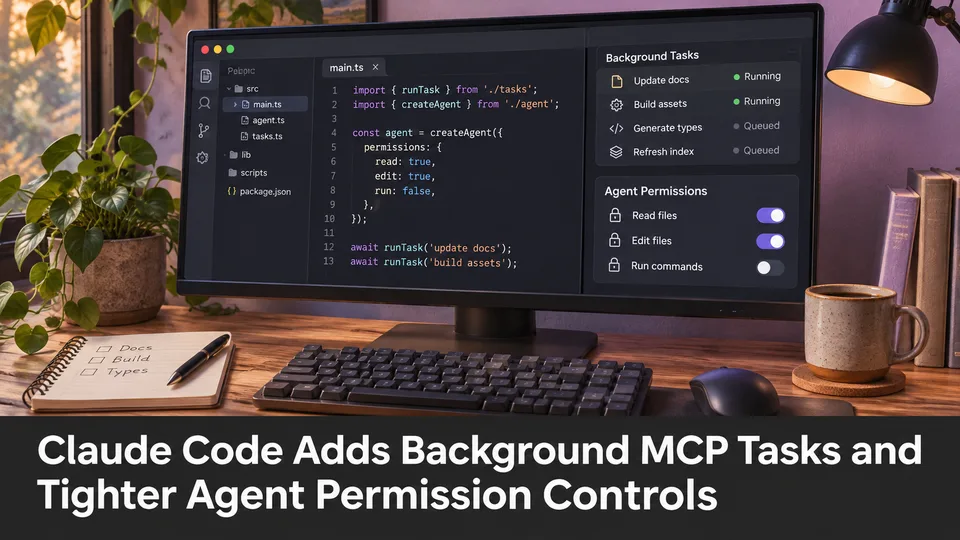
Claude Code Adds Background MCP Tasks and Tighter Agent Permission Controls
Anthropic’s Claude Code 2.1.319 introduced asynchronous MCP tasks and new permission controls. These features may help game developers manage long-running Unreal or Unity tool operations without blocking every agent step.
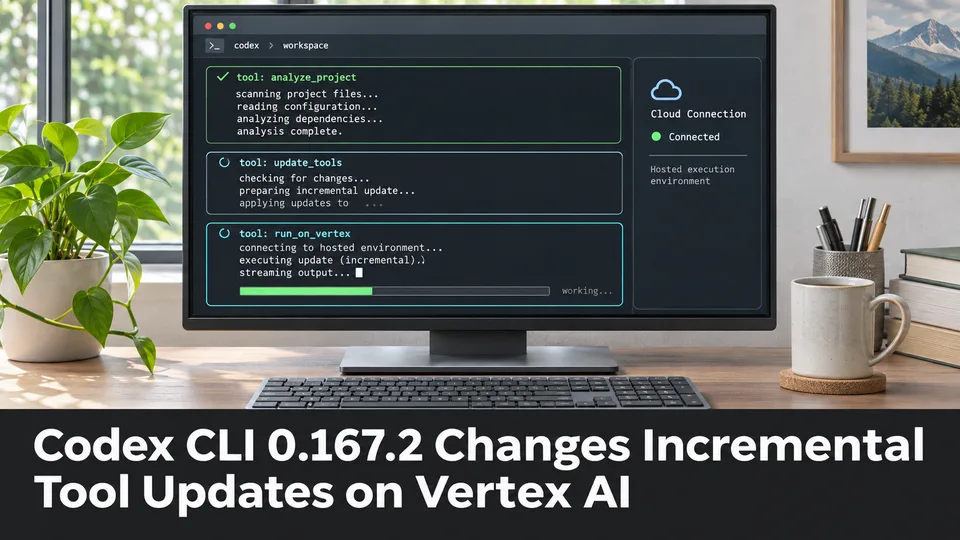
Codex CLI 0.167.2 Changes Incremental Tool Updates on Vertex AI
OpenAI released Codex CLI 0.167.2 with incremental tool updates enabled by default for Google Cloud Vertex AI. The change is relevant to teams using that backend, but it is not a general Unreal or Unity agent feature.
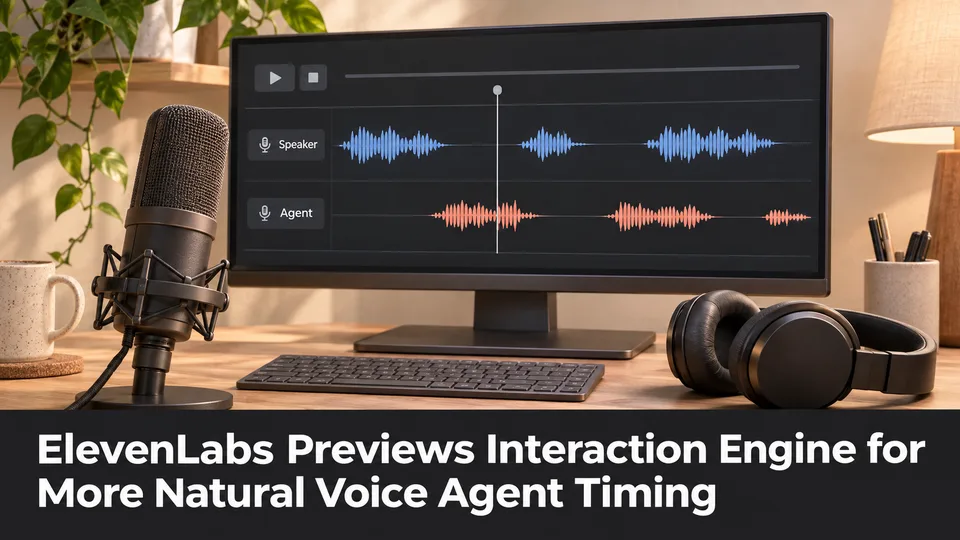
ElevenLabs Previews Interaction Engine for More Natural Voice Agent Timing
At its New York summit, ElevenLabs previewed an Interaction Engine that manages turn-taking, interruptions and model selection in conversations. Real-time game NPC use remains a proposed application, not a shipped game integration.
Comments